Learn Center
Schedule
EZPZ's calendar of upcoming live sessions and events, shown in your own time zone, so you know when to show up.
What is the EZPZ Schedule and how do you see live sessions in your time zone?
The EZPZ Schedule is a calendar of EZPZ's own upcoming live sessions and events, shown in your device's time zone. A month, week, and day calendar sits on the left, and an Upcoming Events list sits on the right. Each entry has a title, a date, a start time, and a meeting link when one is attached.
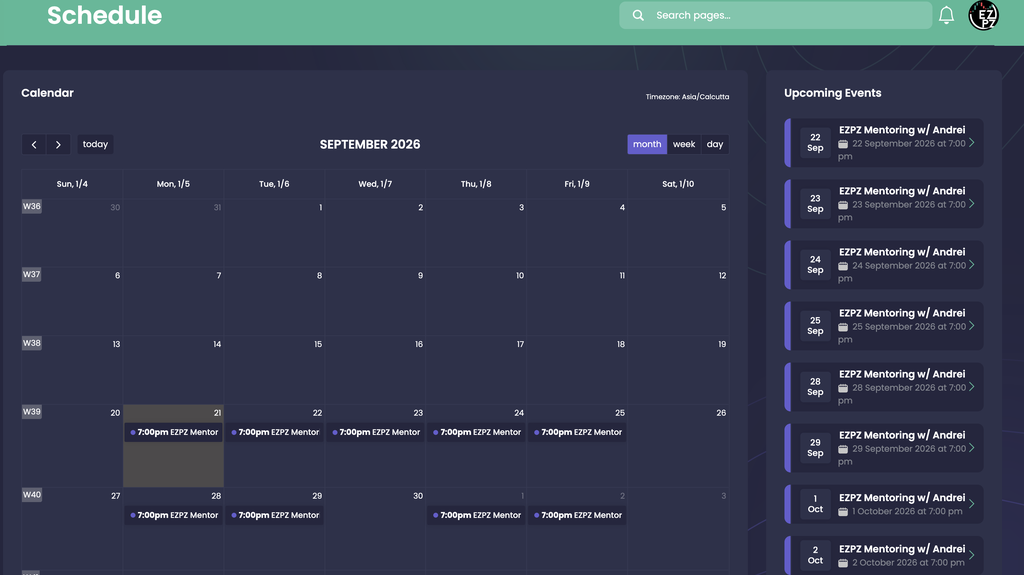
On EZPZ, the Schedule page is where you check when a session starts before you try to join it. The page reads your browser's time zone and prints it in the corner of the Calendar panel ("Timezone: Asia/Calcutta" in the capture below), then converts every start time to that zone. Two people in different countries see the same session at different clock times, and both are right. The page is a forward looking planner. It lists sessions that have not finished yet, so it is not a history of past sessions and it is not a market calendar. Nothing on it is a trade idea, and being on the Schedule does not say what a session will cover.
How the Schedule page works on EZPZ
The page has two panels that load together and do not refresh on their own. Reload the page to pick up a session that was added after you opened it.
The Calendar panel
The Calendar panel is a standard calendar with these controls.
| Control | What it does |
|---|---|
| Timezone | Top right of the panel. It prints your browser's time zone. Every time on the page follows it. |
| < and > | Step back or forward by one month, week, or day, depending on the active view. |
| today | Jumps back to the current date. The current day is shaded in month view. |
| SEPTEMBER 2026 | The title in the middle. It names the month, or the week or day range, you are looking at. |
| month week day | Switch the view. The active one is filled in purple. Month is the default. |
| W36 to W40 | Week numbers in the left edge of each row in month view. |
Month view shows each session as a small pill with its start time and a shortened title. Long titles are cut off ("7:00pm EZPZ Mentor" in the capture), so open the session for the full name or read it in Upcoming Events. Week and day view spread the hours out, from 6:00 am to midnight in your time zone, and mark the current time. A session that starts before 6:00 am on your clock will not fit in those two views, so use month view for it. Clicking a day number takes you to that day's view, and hovering a session shows its title and local start time. Clicking a session opens a small popup with its title and its start and end times.
The Upcoming Events panel
The right panel lists sessions that have not started yet, soonest first. Each card has the same parts.
| Part | What it shows |
|---|---|
| Date box | The day number over the month ("22 Sep"), in your time zone. |
| Title | The session name ("EZPZ Mentoring w/ Andrei"). When a meeting link is attached the title is a link that opens it in a new tab. With no link it is plain text. |
| Date and time | The full date and start time next to a small calendar icon, for example "22 September 2026 at 7:00 pm". The order of the words follows your browser's language setting. |
| Arrow | A small chevron at the right edge of each card. It is decoration and does not open anything. |
Because the list only holds sessions that have not started, a session drops off it the moment it begins, but it can stay on the Calendar while it is in progress. The capture shows exactly that. It was taken in the evening of 21 September, after that day's 7:00 pm session had started. The Calendar still shows the 21 September pill, and the shaded cell marks today, but Upcoming Events starts at 22 Sep.
What the capture shows
- Time zone. The label reads Asia/Calcutta, so every time is on that clock. Someone on the U.S. East Coast would see the same sessions at a different hour.
- A regular weekday slot. A 7:00 pm session appears on 21, 22, 23, 24, and 25 September, then 28 and 29 September, then 1 and 2 October. The weekends (26 and 27 September) have none.
- A gap. Wednesday 30 September has no session, so a regular pattern is not a guarantee. Check the day you plan around.
- The title. Every card in the capture reads "EZPZ Mentoring w/ Andrei". What EZPZ schedules will change, so treat the names as examples of what the page carries.
- Week numbers. W39 is the row holding today, and W40 is the row after it.
How the Schedule differs from other calendars on EZPZ
The Schedule tracks EZPZ's own programming, not the market. For market events, use the other Calendars pages, and for what a session looks like afterward, use Education.
- Economic Calendar lists releases such as jobs and inflation reports that can move the whole market.
- Earnings Calendar lists when individual companies report.
- IPO Calendar lists companies about to start trading.
- FDA Calendar lists drug decision dates that can move biotech stocks.
- Market Holidays lists the days the U.S. exchanges are closed or close early.
- Recorded Live Trading holds replays of past live sessions for members with access, so it covers the sessions the Schedule no longer shows.
If a session is about the tools, it helps to know them first. Ticker Explorer is the one symbol dashboard, and Live Flow is the real time options tape.
How to get more out of the Schedule
- Confirm the time zone first. Check the Timezone label before you trust any hour on the page. A wrong device time zone means every session looks shifted.
- Use Upcoming Events for the link. The card title is the link that opens the meeting, and it is easier to find there than on a small pill in month view.
- Switch to day view for the hour. Click a day number, then read the start time against the hourly grid.
- Reload before you join. The page loads once, so a session added or changed after you opened it will not appear until you refresh.
- Add it to your own calendar. The page has no export or add to calendar button, so copy the date and time into your own calendar and set a reminder.
What to check before you rely on it
- How far ahead it looks. The page loads only the next handful of sessions (up to ten), not a full year. A month far in the future can look empty even when sessions are planned, so check back as the date gets closer.
- No history. Sessions that have finished are gone. Use Recorded Live Trading for a replay, when one exists.
- No description or host. A card shows a title, a date and time, and a link. It does not say what will be covered, who is hosting, or how experienced you need to be.
- No plan requirement is shown. The page does not say which membership level a session needs. The meeting link is what decides whether you can get in.
- A missing link. A card with a plain title and no link has no meeting link attached at the moment. Reload closer to the start time.
- Your device clock. Times come from your computer's time zone setting. If it is wrong, so is every time on the page.
Who uses the Schedule
Members who attend live
Check the next start time and jump straight into the meeting from the Upcoming Events card.
Traders in other time zones
See each session on your own clock without converting from a fixed time by hand.
New members
Get a feel for how often EZPZ runs sessions before deciding which ones to make room for.
Members planning the week
Line sessions up against the Economic Calendar and Earnings Calendar so a session does not clash with a big release.