Learn Center
AI TradingView Connector
EZPZ Finn is a free desktop app that connects TradingView Desktop to AI, so you can control your chart in plain English and pull EZPZ market data beside it.
Talk to your TradingView chart. It answers with EZPZ data.
EZPZ Finn plugs AI straight into TradingView Desktop. Tell it what you want in plain English and it switches the symbol, draws the levels, adds the indicator, sets the alert, and pulls EZPZ options flow, dark pool, and regime data right next to your chart. No tab hopping. No copy and paste.
What is the AI TradingView Connector (EZPZ Finn)?
The AI TradingView Connector is EZPZ Finn, a free desktop app that connects TradingView Desktop to AI. Ask in plain English and Finn reads your live chart, changes it for you, and answers with EZPZ data such as options flow, dark pool prints, key levels, and regime scores. Elite includes EZPZ AI with no API key.
Charting and research usually live in different windows. You spot a setup in TradingView, open three more tabs to check the flow, the dark pool prints, and the gamma walls, then come back and draw it all by hand. Finn closes that loop. It runs beside TradingView Desktop, reads the symbol and price you are on, and acts on your words: "Add a 200-period EMA to my chart", "Draw key support and resistance levels on my chart", "Compile this Pine Script and show any errors". Behind it sit 110 tools. The 88 TradingView-control tools cover chart control, drawings, alerts, Pine Script, strategy backtesting, bar replay, and layouts, and they work on every plan with your own AI key. The 22 EZPZ intelligence tools bring in live EZPZ data and unlock by plan. Save your watchlist and bias rules in My Playbook, and one message turns them into a pre-session brief.
Watch EZPZ Finn in action
Prefer to see it first? This tutorial from the EZPZ team walks through EZPZ Finn. Press play, then keep the setup steps and the screen by screen tour below open as your reference.
Why traders add Finn to their TradingView setup
One sentence, not ten clicks
Change the chart to the 1-hour timeframe. Add a 200-period EMA. Take a screenshot of the current chart. Finn does it on your live TradingView chart while you keep your eyes on price.
Your chart and EZPZ data together
Options flow, dark pool prints, FieldMap key levels, and regime scores come back in the same chat, next to the chart you actually trade.
A brief built on your rules
My Playbook holds your watchlist, bias conditions, and risk rules. Ask for your brief and Finn works through every symbol on your list.
Pine Script without the grind
Finn injects and compiles Pine Script, reads the errors and console, and works with the Strategy Tester, so an idea becomes a testable script faster.
Alerts that save right
Ask for a price alert and Finn creates it in TradingView, checks it after it is created, and tells you the value that was actually saved.
Show it, do not describe it
Screenshot your chart in one click, or attach images, PDFs, CSVs, and Pine files, up to 5 per message, and ask about them.
Replay and layouts on command
Start bar replay and step through bars, or open, switch, and close tabs and panes without hunting through menus.
Hands free with TradingVox
Pair the TradingVox voice assistant and ask out loud. Vox can use every Finn tool, and anything that needs your approval still waits for your click.
You stay in control
API keys stay on your computer, and destructive actions always wait for your explicit confirmation. No phrasing gets around that.
How to set up EZPZ Finn, step by step
- Download EZPZ FinnGet the installer for your computer from the Download EZPZ Finn section of the TV Connector page. It lists builds for macOS, Windows, and Linux. The download is free.
- Install TradingView DesktopFinn works with the TradingView Desktop app, not TradingView in a browser tab. Download it from TradingView's website, install it, and sign in with your TradingView account.
- Open Finn and log inSign in with your EZPZ account, or continue as a guest with your own AI key. Elite members get EZPZ AI selected automatically.
- Click Launch TVLaunch TV in the Finn sidebar opens TradingView Desktop with the bridge switched on. There is nothing to configure and no terminal to open.
- Wait for greenThe status turns green and reads TradingView Connected, and the header shows the symbol, last price, and volume of your chart. Finn can now read and control it.
- Pick your AIElite is ready to go with EZPZ AI. On Free, Pro, or Premium, open Settings, then Connection, and paste a key from Anthropic, AWS Bedrock, or Google Gemini.
- Fill in My Playbook, then askAdd your watchlist and bias rules in Settings, then My Playbooks. Then type "Show my Playbook brief for today" and let Finn get to work.
| Computer | First launch |
|---|---|
| macOS | Open the .dmg, drag the app to Applications, then right click it and choose Open the first time to get past Gatekeeper. You can also run xattr -cr "/Applications/EZPZ TV Connector.app" in Terminal. |
| Windows | Windows may show a SmartScreen warning the first time because EZPZ's code signing certificate is still in its approval process. Click More info, then Run anyway. EZPZ says the warning goes away once the certificate is approved. |
| Linux | Make the AppImage executable, then run it: chmod +x EZPZ-TV-Connector-*.AppImage && ./EZPZ-TV-Connector-*.AppImage |
Tour every screen in EZPZ Finn
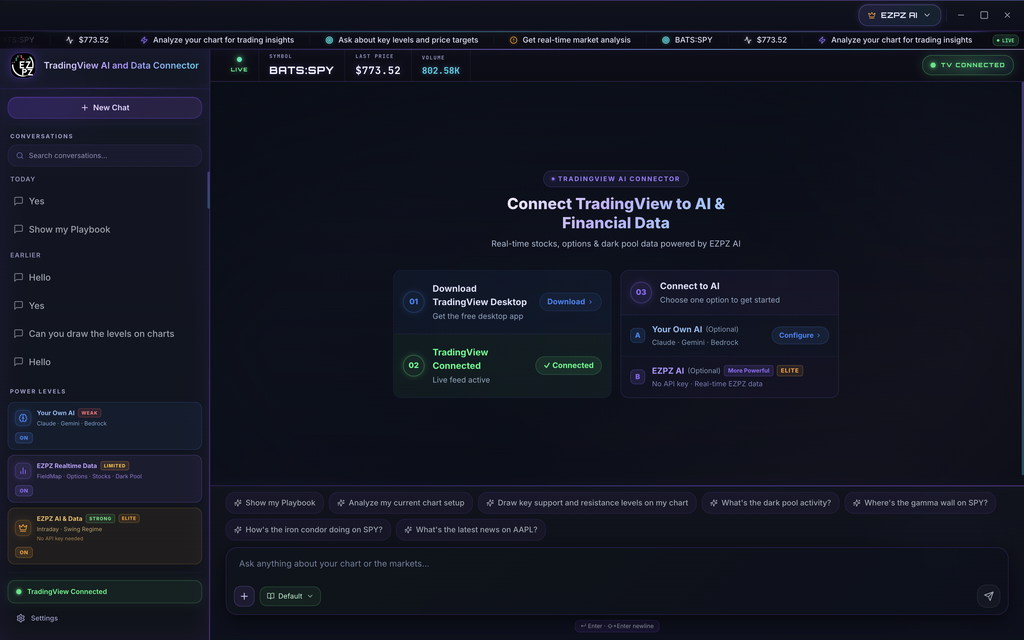
Finn has one chat screen and a Settings area with nine sections: Account, Connection, TradingView, TradingVox, Preferences, My Playbooks, What Finn Can Do, Updates, and About. Each tab below shows one real screen from Finn v2.3.0 and explains what every part does.
What it does
- Live strip. Across the top, LIVE, SYMBOL, LAST PRICE, and VOLUME mirror the chart open in TradingView, with a TV CONNECTED badge on the right. A ticker tape above it scrolls quick ideas such as Ask about key levels and price targets.
- Sidebar. + New Chat starts a fresh conversation. Conversations has a search box and groups past chats under Today and Earlier. Power Levels shows what is switched on for your account, and the footer shows the TradingView Connected status and Settings.
- Getting started card. Before your first message, three steps sit in the middle: 01 Download TradingView Desktop, 02 TradingView Connected with Live feed active, and 03 Connect to AI, where you choose A, Your Own AI, or B, EZPZ AI.
- Prompt chips. One tap sends a ready made question. In this capture: Show my Playbook, Analyze my current chart setup, Draw key support and resistance levels on my chart, What's the dark pool activity?, Where's the gamma wall on SPY?, How's the iron condor doing on SPY?, and What's the latest news on AAPL?
- Message box. Type under "Ask anything about your chart or the markets...". The + button screenshots your chart or attaches files, the Default picker switches the active playbook, and Enter sends while Shift+Enter adds a new line.
In this capture
- The chart is BATS:SPY at a last price of $773.52 with volume of 802.58K, and step 02 reads Connected.
- All three Power Levels are ON: Your Own AI, tagged WEAK (Claude · Gemini · Bedrock), EZPZ Realtime Data, tagged LIMITED (FieldMap · Options · Stocks · Dark Pool), and EZPZ AI & Data, tagged STRONG and ELITE (Intraday · Swing Regime, No API key needed).
- Option B on the Connect to AI card carries More Powerful and ELITE badges with the line No API key · Real-time EZPZ data.

What it does
- Providers. The header reads "Configure your AI provider. All keys are stored locally." Four providers are listed: EZPZ AI, Anthropic (Claude), AWS Bedrock, and Gemini (Google).
- EZPZ AI. Marked Elite, Included. Powered by EZPZ AI, no API key required. Two bars show how much of your Monthly allowance and Daily allowance is left, with a refresh button beside them.
- Usage credits. A switch labeled "Use credits automatically when I hit a plan limit" lets Finn keep going after an allowance runs out instead of stopping until the reset. Top up with $15.00, $30.00, or $50.00, or a Custom amount of $10 or more, then Add credits. View transaction history lists your purchases. The TV Connector page adds that credits never expire.
- Your own key. Open Anthropic and paste a key from console.anthropic.com. Open AWS Bedrock and enter your Access Key ID, Secret Access Key, AWS Region, and a Bedrock Model ID. Open Gemini and paste a key from aistudio.google.com. You can switch models from the dropdown.
In this capture
- EZPZ AI carries both Active badges and a green Active Provider bar, so it is the provider Finn is using.
- Gemini shows a Configured badge, which means a key is saved for it even though EZPZ AI is the one in use.

What it does
- Status card. A dot, the symbol and price Finn is reading, and a status badge. Green and connected means Finn can read and control your chart.
- Reconnect. One click re-attaches Finn to TradingView Desktop if the link drops.
- Manual launch. The exact command to start TradingView Desktop yourself with the bridge on, for your operating system. Use it only when Launch TV does not work. See the troubleshooting section below.
In this capture
- BATS:SPY at $773.52 with a green connected badge, and the macOS command
/Applications/TradingView.app/Contents/MacOS/TradingView --remote-debugging-port=9222.

What it does
- Pairing. "Link your TradingVox account so Vox can ask Finn to control this chart by voice." Get a code from TradingVox, paste it into Pairing code, and click Link.
- Status. The line at the top shows whether Finn and Vox are talking, with a connected or disconnected badge. Forget this pairing removes the link so you can pair again.
- What Vox can do. Since v2.3.0, Vox can ask Finn to do anything Finn can do in chat, on every AI provider. Actions that need your approval show a popup, and they run only after you click Allow. Very long scans still need to be asked in the Finn chat.
- Your EZPZ plan in Vox. The TV Connector page on EZPZ also has a Link TradingVox Voice Assistant box. Enter a code from TradingVox Settings, Link EZPZ Account, and your EZPZ plan decides which voice tools you get there.
In this capture
- The status reads "Paired, reconnecting..." with a disconnected badge: Finn has a saved pairing and is trying to reach Vox.

| Setting | What it does |
|---|---|
| Auto-fetch chart context | Automatically reads TradingView chart data, so you do not have to say which symbol you mean. |
| Send on Enter | Enter sends and Shift+Enter adds a new line. |
| Files & screenshots | Lets you attach images, PDFs, text files, and screenshots to messages. Turn it off to hide attachments. |
| Text Size | Font size across the app: 12, 13, 14, 15, 16, or 18. |
| Context refresh interval | How often Finn polls TradingView for live data: 5s, 10s, 30s, or 60s. |
In this capture
- All three Behaviour switches are on, Text Size is 18, and the refresh interval is 5s. Faster refreshes keep answers closest to the tape, which suits fast intraday trading. A slower setting is fine for swing work.

What it does
- Playbooks. "Keep several named playbooks: your watchlist, bias criteria, and risk rules. The active one is applied to every AI analysis automatically." The active playbook is also the one used by Vox and the Morning Brief. Use + to create one, the pencil to rename, the copy icon to duplicate, and the bin to delete.
- Watchlist. The symbols the AI analyzes in every session. Type in the box to add more.
- Default Timeframe. The timeframe Finn uses for analysis across all sessions.
- Bias Criteria. Write the conditions that make you bullish or bearish, in plain English, one chip each.
- Further down. The TV Connector page lists Neutral / Range rules, Risk Rules such as max risk per trade and no-trade windows, and Today's Notes for macro context such as a Fed or CPI day. Version 2.3.0 added a Strategy & Thesis field for long form setup rules that stay in place day to day.
In this capture
- The Default playbook is ACTIVE, with SPY, SPX, QQQ, NVDA, AAPL, and TSLA on the watchlist and a 1D default timeframe.
- Bullish Conditions: Price above 20 EMA and 50 SMA, RSI above 55 on daily, Higher highs and higher lows structure, SPY trending above VWAP, and VIX below 20.
- Bearish Conditions: Price below 20 EMA and 50 SMA, RSI below 45 on daily, Lower highs and lower lows structure, SPY trending below VWAP, and VIX above 25.
- These are one member's rules, not EZPZ settings. Replace them with your own.

What it does
- The full list. "Every capability Finn has access to, grouped by area. Updated as new tools ship." The banner reads: Finn has 110 tools, 88 free TradingView-control tools and 22 EZPZ intelligence tools gated by subscription.
- Safety rule. The same banner says destructive actions always require your explicit confirmation first, and no phrasing overrides that.
- Find a tool. Search tools (for example alert, gamma, or pine), or filter with All, TradingView, and EZPZ.
- Direct TradingView Control. "All 88 of these are free, included for every connected user regardless of subscription."
| Group | Tools |
|---|---|
| Chart Control & Reading | 17 |
| Drawing & Alerts | 8 |
| Pine Script Editor | 12 |
| Strategy Backtesting | 3 |
| Reading Pine-Plotted Data | 4 |
| Indicator Controls | 2 |
| Bar Replay | 6 |
| Tabs, Panes & Layouts | 10 |
| Watchlist | 2 |
| Playbook & Session Memory | 7 |
The capture shows the first ten groups. The list keeps going below them, including the EZPZ group of data tools covered in the plan table further down.

What it does
- Version. The card shows the app as EZPZ TV Connector with its current version. Check for Updates looks for a newer build.
- Changelog. What's in the current version, split into New and Fixed, so you know what changed before you use it.
In this capture (v2.3.0)
- New: Vox can now use all of Finn's tools. You can attach files and chart screenshots with the + button, or paste or drag them in: PNG, JPG, WebP, and GIF images, PDFs up to 100 pages, and TXT, CSV, JSON, MD, and Pine files, up to 5 files per message. Images are resized and their location data is removed before sending.
- New: every member can keep multiple named playbooks, and a Strategy & Thesis field joins My Playbook. You can switch playbooks from the picker under the chat box, in Settings, or by asking Finn, and you approve each change.
- Fixed: Vox no longer says "Finn timed out" after a ticker change. Price alerts now save the value you entered, and deleting alerts works again. Indicator settings such as "EMA 21" now apply reliably.
What can you ask Finn? Prompts to copy
Paste any of these into the Finn chat. Chart prompts work on every plan. The tag on each group shows the lowest EZPZ plan that unlocks its data.
Control your chart Any plan
- Change the chart to the 1-hour timeframe.
- Add a 200-period EMA to my chart.
- Analyze my current chart setup.
- Create an alert when SPY breaks above [your level].
- Compile this Pine Script and show any errors.
- Take a screenshot of the current chart.
Run your playbook Any plan
- Show my Playbook brief for today.
- Show my Playbook.
- Draw key support and resistance levels on my chart.
Flow, dark pool and scanners Pro+
- What options flow is coming in on NVDA right now?
- Show me all bullish sweeps on SPY in the last hour.
- What are the top gainers right now?
- Show me stocks gapping up more than 5% in premarket.
- What's the dark pool activity on AAPL today?
- Show large darkpool prints over $1M premium on SPY.
Key levels Premium+
- Give me the EZPZ FieldMap for SPY.
- What are the key levels for my current chart?
- Where's the gamma wall on SPY?
Regime scores and more Elite
- What's the intraday market regime for SPY right now?
- Show me the intraday regime leaderboard.
- What's the swing regime score for NVDA?
- Show me the top swing trade setups right now.
- What's the latest news on AAPL?
Which EZPZ plan unlocks what in Finn?
Finn is free to download and every connected user gets the 88 chart tools. Your EZPZ plan decides two things: which AI powers Finn, and how much EZPZ market data it can pull. The Power Levels card in the Finn sidebar shows the same ladder.
Weak · Any plan
Your Own AI
Bring a Claude, Gemini, or AWS Bedrock key and drive TradingView with all 88 chart tools. Free members and guests start here.
Limited · Pro and Premium
EZPZ Realtime Data
Adds EZPZ options flow, the stock scanner, and dark pool prints from Pro, plus Trader's FieldMap key levels from Premium. You still use your own AI key.
Strong · Elite
EZPZ AI & Data
EZPZ AI with no API key, all 22 EZPZ intelligence tools including regime scores, and usage credits so a busy session does not stop at a limit.
| What you get in Finn | Free or guest | Pro | Premium | Elite |
|---|---|---|---|---|
| Download and install Finn | Yes | Yes | Yes | Yes |
| 88 TradingView-control tools: chart, drawings, alerts, Pine Script, backtesting, replay, layouts, playbooks | Yes | Yes | Yes | Yes |
| AI that powers Finn | Your own key | Your own key | Your own key | EZPZ AI included, no API key |
| Options Live Flow, Stock Scanner, Dark Pool Flow | No | Yes | Yes | Yes |
| Trader's FieldMap key levels | No | No | Yes | Yes |
| Intraday, Swing and Investing regime scores and leaderboards | No | No | No | Yes |
| Intraday trade plan drawn on your chart, strategy robustness check, volume profile, anchored VWAP, divergence detection | No | No | No | Yes |
| Option depth flow, Greeks heatmap, market and company news, news sentiment, theta strategies | No | No | No | Yes |
| Monthly and daily EZPZ AI allowance, plus usage credits | No | No | No | Yes |
A pre-market routine with Finn
Here is one way to use Finn before and during a session. Swap in your own tickers and rules.
- Set the stagePick today's playbook from the picker under the chat box, and add a line to Today's Notes if it is a Fed or CPI day.
- Get your briefAsk "Show my Playbook brief for today." Finn works through each watchlist symbol against your bias conditions and notes, so you start with a plan instead of a blank chart.
- Map the levelsAsk "Give me the EZPZ FieldMap for SPY", then "Draw key support and resistance levels on my chart." The levels land on your TradingView chart, not in a separate tab.
- Check who is positionedAsk "Where's the gamma wall on SPY?" and "What's the dark pool activity on SPY today?" to see where big money sits.
- Set your alertsAsk "Create an alert when SPY breaks above [your level]." Finn confirms the value that was saved in TradingView.
- Stay on top of the tapeDuring the session, ask "What options flow is coming in on NVDA right now?" or "What's the intraday market regime for SPY right now?" without leaving the chart.
- Save the sessionFinn can save today's brief so you can look back at earlier sessions any time.
Is EZPZ Finn safe to use?
- Your keys stay with you. The Connection screen says it plainly: all keys are stored locally.
- Nothing destructive without you. Destructive actions always need your explicit confirmation first, and no phrasing overrides that.
- Voice asks first too. When Vox triggers an action that needs approval, a popup appears and the action runs only after you click Allow. Finn also asks you to approve playbook switches.
- Cleaner attachments. Images are resized and their location data is removed before they are sent. You can turn attachments off in Preferences.
- First launch warnings are expected. Windows SmartScreen appears while EZPZ's signing certificate is being approved, and macOS asks you to confirm the first open. The setup table above shows how to get past both.
Troubleshooting the TradingView connection
| What you see | What to do |
|---|---|
| Status is amber, Connecting | Wait a moment. Finn is attaching to TradingView Desktop. |
| Status is red, Disconnected | Click Reconnect, in the sidebar or in Settings, then TradingView. |
| Launch TV does not open TradingView | Close TradingView Desktop completely and click Launch TV again. If it still fails, start TradingView with the manual command below. Finn detects it and connects on its own. |
| Two TradingView windows are open | Only one TradingView instance can use port 9222 at a time. Close the extra one. |
| Still no connection | Make sure your firewall is not blocking port 9222. |
| TradingVox shows disconnected | Paired, reconnecting means Finn has a saved pairing and is trying to reach Vox. If it never connects, click Forget this pairing and link again with a fresh code from TradingVox. |
| Finn says your EZPZ AI allowance is used up | On Elite, turn on "Use credits automatically when I hit a plan limit" in Connection and add credits, or wait for the allowance to reset. |
Manual launch commands
macOS, in Terminal:
/Applications/TradingView.app/Contents/MacOS/TradingView --remote-debugging-port=9222Windows, in Command Prompt:
"C:\Users\%USERNAME%\AppData\Local\TradingView\TradingView.exe" --remote-debugging-port=9222Linux, in a shell:
tradingview --remote-debugging-port=9222How Finn differs from EZRA and AiPe
EZPZ has three AI tools, one for each place you work. AiPe lives inside EZPZ chart and data pages and explains the page on your screen. EZRA is the research analyst on the EZPZ website that pulls data from across the platform into one written answer. Finn is the only one that lives next to TradingView and acts on your chart: it draws, adds indicators, sets alerts, runs replay, and writes Pine Script.
| Tool | Where it runs | Best for | Plan |
|---|---|---|---|
| AiPe | Inside EZPZ pages | "What am I looking at?" | Pro+ |
| EZRA | EZPZ website | Deep research across EZPZ data | Elite for the full chat |
| EZPZ Finn | Desktop, beside TradingView Desktop | Acting on your chart with EZPZ data | Free download, Elite for EZPZ AI |
Finn's data tools read the same EZPZ data you can study page by page: Live Flow for options prints, Dark Pool Flow for off exchange trades, Trader's FieldMap for the level ladder, the Intraday, Swing, and Investing regime leaderboards, Option Depth Flow, the Greeks Heatmap, and Market News. If you want EZPZ's own scripts on your chart, see EZPZ TradingView Indicators.
Ready to talk to your chart?
Download EZPZ Finn for macOS, Windows, or Linux, open TradingView Desktop, and click Launch TV. Your first answer is one sentence away.