
Learn Center
Submit a Ticket
How to open a support ticket with EZPZ: what each field on the form wants, how Priority works, which files you can attach, and what happens next.
How do you submit a support ticket to EZPZ and what does each field do?
A support ticket is a written request to the EZPZ team, filed through the Submit a Ticket form. You pick a Reason, write a Summary of the problem and a Description of your issue, set a Priority, optionally attach a file, and confirm the e-mail address where updates should go. EZPZ replies by e-mail when the ticket changes.
On EZPZ, the form sits behind your login, so every ticket is tied to your account. The page opens with a purple SUPPORT TICKET badge, the title "Submit a Ticket," and a line that says the team will get back to you as soon as possible. Under it is one card with six fields and a Submit Ticket button. Five of the fields are required. Only the file attachment is optional. Nothing on the page states a response time, and nothing on it changes the answer to your question, so the form is best treated as a way to hand the team a clear, complete report. A ticket that names the page, the ticker, and what you expected versus what you saw gives the team the least to chase.
How the Submit a Ticket page works on EZPZ
Signing in comes first. If you are logged out, the link sends you to the EZPZ login page, and you come back to the form afterward. The form itself is a single column that scrolls. A blue Important note sits at the top of the card, then the fields run in a fixed order: Reason, Summary of the problem, Description of your issue, Priority, Attach File, and Your E-Mail Address.
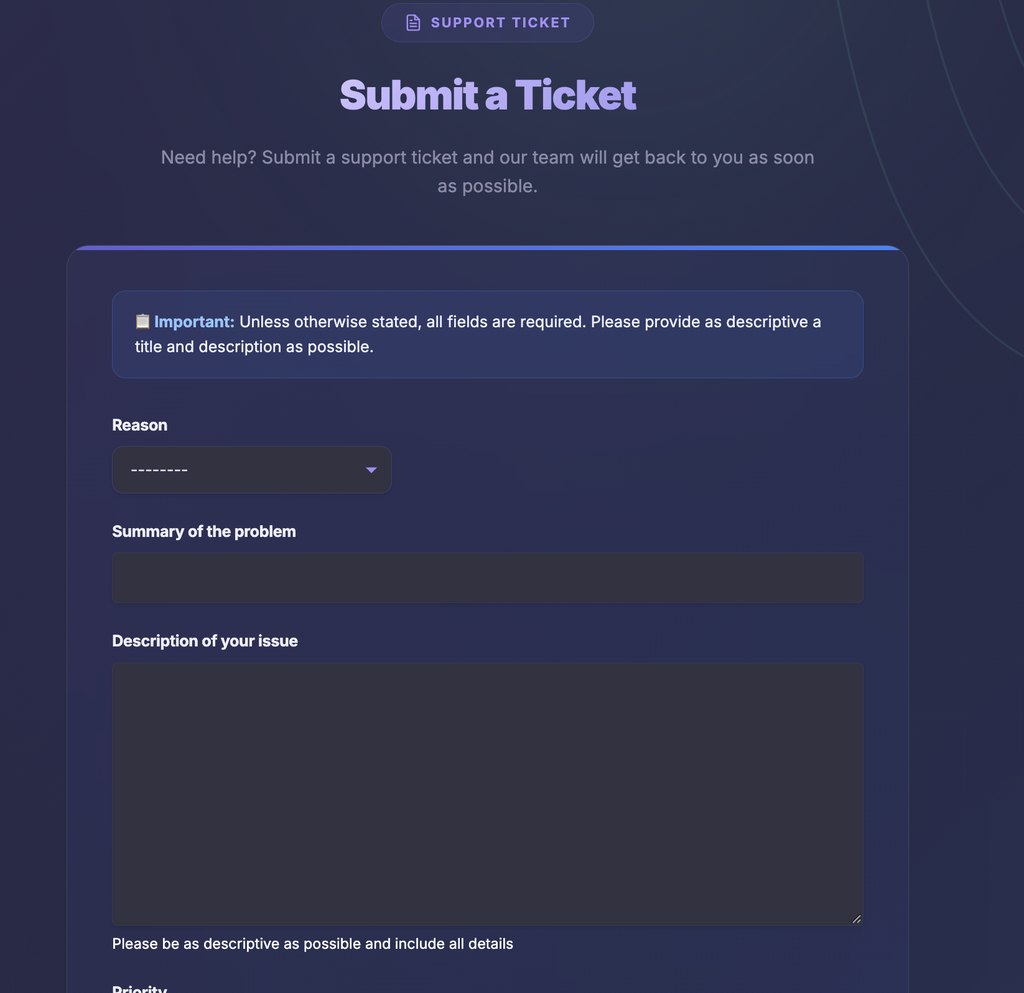
The form fields, one by one
| Field | What to enter | Required? | What the page tells you |
|---|---|---|---|
| Reason | Pick the topic that fits your problem from the dropdown. | Yes | It opens on a row of dashes, and you must change it. The choices are set by EZPZ's support team, and the capture shows only the placeholder. |
| Summary of the problem | A short title, one line. | Yes | Up to 100 characters. |
| Description of your issue | The full story, in as much detail as you can give. | Yes | "Please be as descriptive as possible and include all details." |
| Priority | How urgent the issue is for you. | Yes | Opens on 3. Normal. "Please select a priority carefully. If unsure, leave it as '3'." |
| Attach File | One optional file, such as a screenshot. | No | Lists the file types you may upload (see below). |
| Your E-Mail Address | The address that should get updates. | Yes | "We will e-mail you when your ticket is updated." In the capture it is already filled in from the account. |
Your account may also show an extra field if the team has added one, though the capture has none. Any field the page shows without the word "optional" is one to fill in.
Priority, attachment, and e-mail
The lower half of the card holds the three fields people skip past. The capture shows Priority on its default, Attach File empty, and the e-mail box filled in.

Priority
The dropdown has five values, listed from most to least urgent. The page gives no definition or response time for any of them, so the number is a request, not a promise.
| Value | Label on the page |
|---|---|
| 1 | 1. Critical |
| 2 | 2. High |
| 3 | 3. Normal (the default) |
| 4 | 4. Low |
| 5 | 5. Very Low |
The page says to leave it on 3 if you are unsure. A reasonable habit is to move it up only when something blocks you from using the platform or your account, and to move it down for a question that can wait. Marking every ticket Critical makes the label less useful for you and for the people reading the queue.
Attach File
The Choose file button opens your device's file picker, and the box reads "No file chosen" until you pick one. It takes one file per ticket. The page says only these types may be uploaded: plain text (.txt), a document (.pdf, .docx, or .odt), or a screenshot (.png or .jpg). The form also lets a few related types through (.doc, .html, .htm, .asc, and .eml), and a file with no extension. It refuses anything else and shows an "Unsupported file extension" message, and that includes .jpeg, so rename a .jpeg screenshot to .jpg or save it as a .png. The page states no file size limit, so keep screenshots reasonably small.
Your E-Mail Address
This is the address that receives the ticket confirmation and every later update. It fills in from your account when your settings allow it, so most members only check it. Use the address you actually read, and keep it on your account e-mail unless you have a reason to change it. The page that opens after you submit checks that the address matches your account, so a different address may not open the confirmation page for you. My Tickets also lists only tickets filed under your account e-mail, so a ticket sent with another address will not show up there, even though the team still receives it.
What happens after you click Submit Ticket
- The ticket is created. Your Reason, Summary, Description, Priority, and file are saved together, and the first entry in the ticket's history reads "Ticket Opened Via Web."
- A View a Ticket page opens. It carries a ticket number and shows Submitted On, Status, Priority, Queue, Submitter, and Description, with a Follow-Ups list below.
- An e-mail goes to the address you entered. Later replies and status changes are e-mailed to the same address.
- You can add to it. The Update This Ticket area lets you write a comment and attach another file, and when a ticket is marked Resolved an Accept and Close button lets you close it yourself.
To come back to a ticket later, open My Tickets at https://ezpztrading.com/helpdesk/tickets/my-tickets/, which lists what you have submitted and where each one stands. The Support Portal guide covers it. Adding a comment to the existing ticket is cleaner than opening a second one for the same problem.
How to write a ticket that gets a fast answer
The form asks for a lot of detail on purpose. The kinds of information below tend to save the most back and forth.
| Kind of ticket | Put in the Summary | Put in the Description |
|---|---|---|
| A page or tool is wrong | The page name and the symptom, such as "Live Flow table stays empty." | The ticker, the filters you used, the time it happened, what you expected, what you saw, and your browser. Attach a screenshot. |
| Billing or plan | The plan and the question, such as "Charged twice for Pro." | The date, the amount, and the e-mail on the account. Attach the receipt if you have one. |
| Login or account | What you cannot do, such as "Cannot sign in after password reset." | The e-mail you use, the exact message you see, and what you already tried. |
| A question about a tool | The tool and the question. | What you are trying to do and where you got stuck. The FAQs at https://ezpztrading.com/helpdesk/kb/ may already answer it (see the Support Portal guide). |
Never paste a password or a full card number into a ticket. The team does not need either, and a ticket is an e-mail trail.
How Submit a Ticket differs from other Help Desk pages
The Help Desk is the Support Portal, the FAQ page, My Tickets, and this form. The portal guide covers the other three, because they work as one place: the FAQs to try first, the portal's View a Ticket box, and My Tickets to follow a reply. The portal at https://ezpztrading.com/helpdesk/ shows this same form inside a larger page with FAQ cards beside it.
Submit a Ticket is the one that starts a new request. Opening the form from an FAQ article's Create Ticket button fills in the Reason for you and locks it when the article's category is tied to a topic. If you are reporting a problem on a specific tool, it helps to know the tool's normal behavior first. The Learn guide for Live Flow or Ticker Explorer describes what a healthy page looks like, and the Learn Center has a guide for most other tools.
What to check before you submit
- Sign in first. The form is not open to logged out visitors.
- Change the Reason. It opens on dashes, and the form will not send until you pick one.
- Keep the Summary short. It stops at 100 characters, so put the detail in the Description.
- Leave Priority on 3 if unsure. That is the page's own advice.
- Check the file type. A .jpeg is refused. Use .jpg or .png.
- Check the e-mail. Updates go there, so make sure it is an address you read.
- Look for an existing ticket. One clear ticket beats two for the same problem.
Who uses Submit a Ticket
Members with a bug
Report a page that looks wrong, with a screenshot attached so the team can see exactly what you saw.
Members with a billing question
Ask about a charge or a plan change and keep the whole conversation tied to your account.
Members locked out
Explain a login problem with the exact message, so the team can check the account rather than guess.
Members stuck on a tool
Ask a question the FAQs did not answer, after checking what the tool's Learn guide already says.